Print Solution Setup
Prerequisite
Install Apps
From Dynamics 365 Business Central search for Extension Marketplace and download the Print Solution apps from Microsoft Dynamics 365 Business Central AppSource. Then Log into the Print Solution Client.
Permissions
Following permission sets can be assign to users.
(ISAPTS-BASIC)- This permission set allows users to print document using Print Solution.(ISAPTS-SETUP)- This permission set allows users to setup Print Solution.
Connection Setup
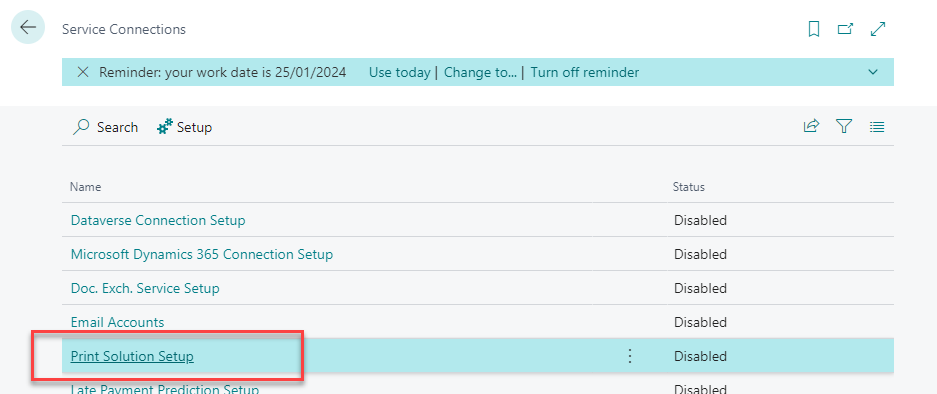
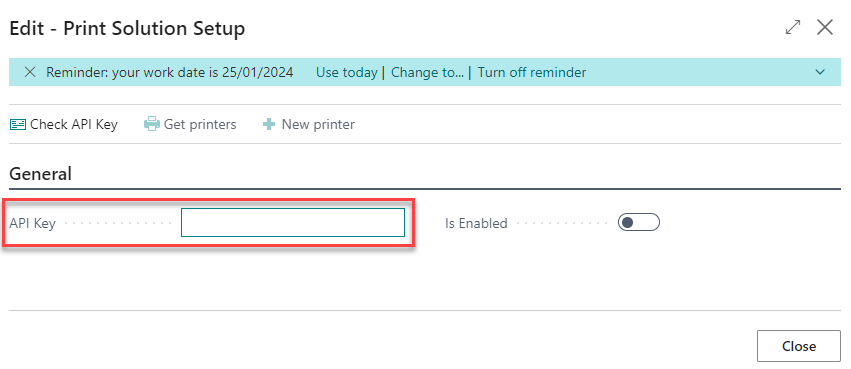
Using the Service Connections page search for Print Solution Setup,

Get Printers
In Business Central, in Service Connection/Print Solution/Setup use the Get Printers to donwload the list of printers connected via the print solution client.
Print Job Tracking
The Print Job Tracking group controls how the application monitors the execution status of print jobs after they have been submitted to the print service.
| Field | Description |
|---|---|
| Enable Automatic Status Update | When enabled, the application automatically and periodically queries the print service to update the status of all pending print jobs. When disabled, statuses are only updated when you manually trigger a refresh from the Print Solution Jobs page. |
| Status Update Frequency (Minutes) | Defines how often (in minutes) the application checks the print service for status updates. The minimum value is 1 minute. The default value is 2 minutes. This field is only editable when Enable Automatic Status Update is turned on. |
Enabling Automatic Status Update
When you turn on Enable Automatic Status Update, the application automatically creates a background scheduled task that runs at the interval defined in Status Update Frequency. This task runs every day of the week, around the clock, and queries the print service for the latest status of all print jobs currently in New or Sent to Client state.
Note: Print jobs already in a final state (Done, Error, or Expired) are never included in the automatic refresh cycle.
If you change the value of Status Update Frequency while automatic update is already enabled, the scheduled task is updated immediately to reflect the new interval — no further action is required.
Disabling Automatic Status Update
When you turn off Enable Automatic Status Update, the scheduled background task is automatically removed. Print job statuses will no longer be updated automatically. You can still refresh statuses manually at any time using the Refresh Status action on the Print Solution Jobs page or on an individual Print Solution Job Card.
Recommended Setup
For most environments, the following configuration is recommended:
| Setting | Recommended Value |
|---|---|
| Enable Automatic Status Update | ✅ Enabled |
| Status Update Frequency (Minutes) | 2 |
A 2-minute refresh cycle provides near-real-time visibility into print job execution without placing unnecessary load on the print service.
Tip: If your organization operates in a high-volume printing environment, consider increasing the frequency interval to reduce the number of API calls made to the print service per hour.
Monitoring Print Jobs
Once the Print Job Tracking is configured, you can monitor all print jobs from the Print Solution Jobs page. Search for Print Solution Jobs in Dynamics 365 Business Central to access the log.
For full details on the Print Job Log and its features, see Print Job Log.