Printing SSCC labels
Report Selection — SSCC Label
The Report Selection - SSCC page lets you define the SSCC report and custom layout you may assign to a specific location or third party.
This page allows you to configure which label report is printed depending on the context of the shipment. Each row in the table defines a set of criteria and a report to use when those criteria are matched.
| Field | Description |
|---|---|
| Package Type | Limits this selection rule to a specific package type. Leave blank to match any package type. |
| Location Code | Limits this selection rule to a specific warehouse location. Leave blank to match any location. |
| Shipping Agent Code | Limits this selection rule to a specific shipping agent (carrier). Leave blank to match any carrier. |
| Shipping Agent Service Code | Limits this selection rule to a specific shipping service (e.g., express vs. standard). Filtered by the Shipping Agent Code. |
| Ship-to Type | Indicates whether the ship-to party is a customer or a vendor. Leave blank to match both. |
| Ship-to No. | Limits this selection rule to a specific customer or vendor. Leave blank to match any. |
| Ship-to Code | For customers, limits the rule to a specific ship-to address code. |
| Report ID | The report to run when this selection rule is the best match. |
| Report Caption | The name of the selected report (read-only). |
| Custom Layout Description | An optional custom Word layout to apply to the selected report. Click the field to browse and select from available layouts. |
Selection Priority Logic
In the SSCC report selection table, the record with the largest number of matching filled-in fields gets the highest priority for selection.
For example:
- If the source sales document has Location: PRINCIPAL, Customer No.: C00001, Shipping Agent: F000001:
- A rule with all three filled in (3 matching fields) takes priority over a rule with only two filled in (2 matching fields).
- When two rules have the same number of matching fields, the key defines the sorting order (Location, Shipping Agent, Customer). The latest record in that sort order is the one selected.
If no matching rule is found in the selection table, the default SSCC label report is used.
Printing SSCC Labels
You can print SSCC labels either from the Inventory Pick page or from the SSCC List page.
From the Inventory Pick:
- Select the Print SSCC action from the Inventory Pick header to print all SSCC labels for all lines on the pick.
- Select the Print SSCC action from an Inventory Pick line to print all SSCC labels for the currently selected line.
From the SSCC List:
- Select one or more SSCC records, then choose Print SSCC Label from the Reports menu.
From posted documents (Registered Pick, Posted Warehouse Shipment, etc.):
- Use the Print SSCC action available on both the document header and the line to reprint labels.
Default SSCC Label Content
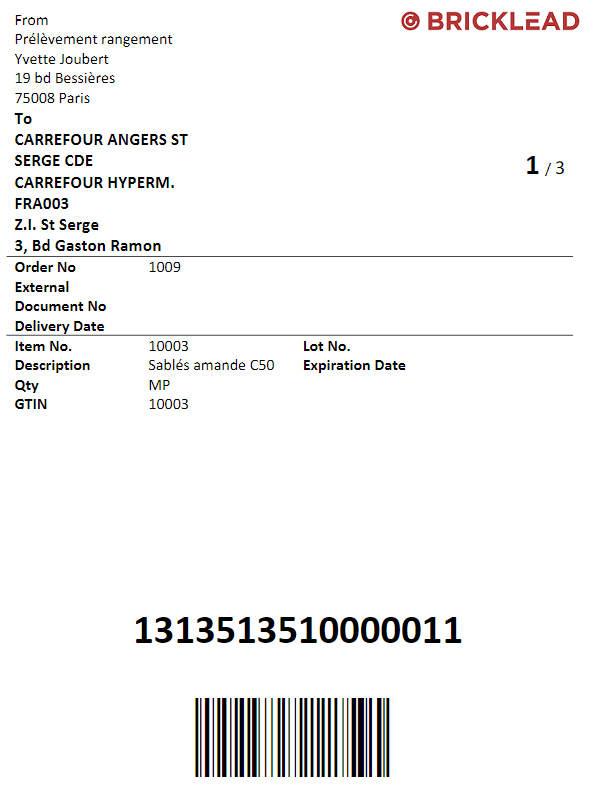
The default label (a Microsoft Word report) includes:
| Section | Content |
|---|---|
| SSCC | SSCC number as text + Code 128 barcode |
| Company | Company name, address, phone, email, GLN |
| Location | Shipping location name and address |
| Shipping Agent | Carrier code, name, account number, service code and description |
| Ship-to | Customer/vendor name and address, phone, email, delivery date, external document number, order number |
| Item (Mono-item only) | Item number, description, GTIN, EAN barcode, quantity, lot number, serial number, expiration date, warranty date |
Mono-item logic: Item-level details (lot, serial, expiration, GTIN barcode) are printed on the label only if all lines within the SSCC contain exactly the same item, lot, and expiration date. If the SSCC contains mixed items or lots, the item section is left blank.
Label Report Auto-Selection
The application automatically selects the best matching label report based on the criteria defined in the Report Selection — SSCC Label setup. See the [Report Selection — SSCC Label]section for details on how the selection priority works.
Customisation: As the SSCC label is a Microsoft Word report, it can be easily customised. Contact your system administrator or Bricklead partner to adapt the layout to your company’s requirements.
SSCC Label report
Here is the default SSCC label output. As this is a Microsoft word report (report 8120700), this one can be easily customized.