Automate Regenerative Plan Calculation
Advanced Planning enables background calculation of the Planning Worksheet using Job Queue, so planners can work with pre-calculated MRP/MPS suggestions without waiting for long blocking runs. Users can save filter sets with dynamic date formulas and re-run with one click.
Setup
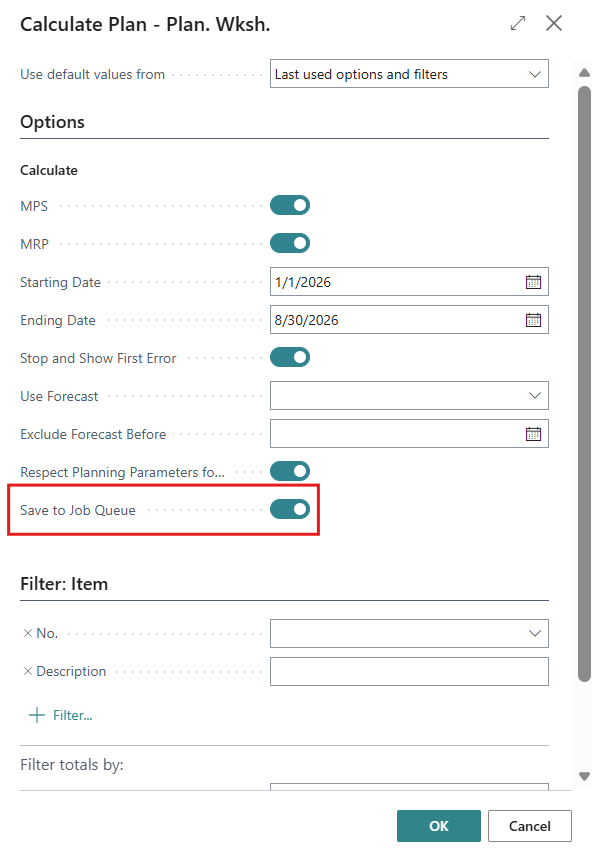
Save to Job Queue (Request Page Field) The Calculate Plan – Plan. Wksh. request page includes a new field:
- Save to Job Queue: saves the current options/filters as a reusable calculation profile for Job Queue execution.
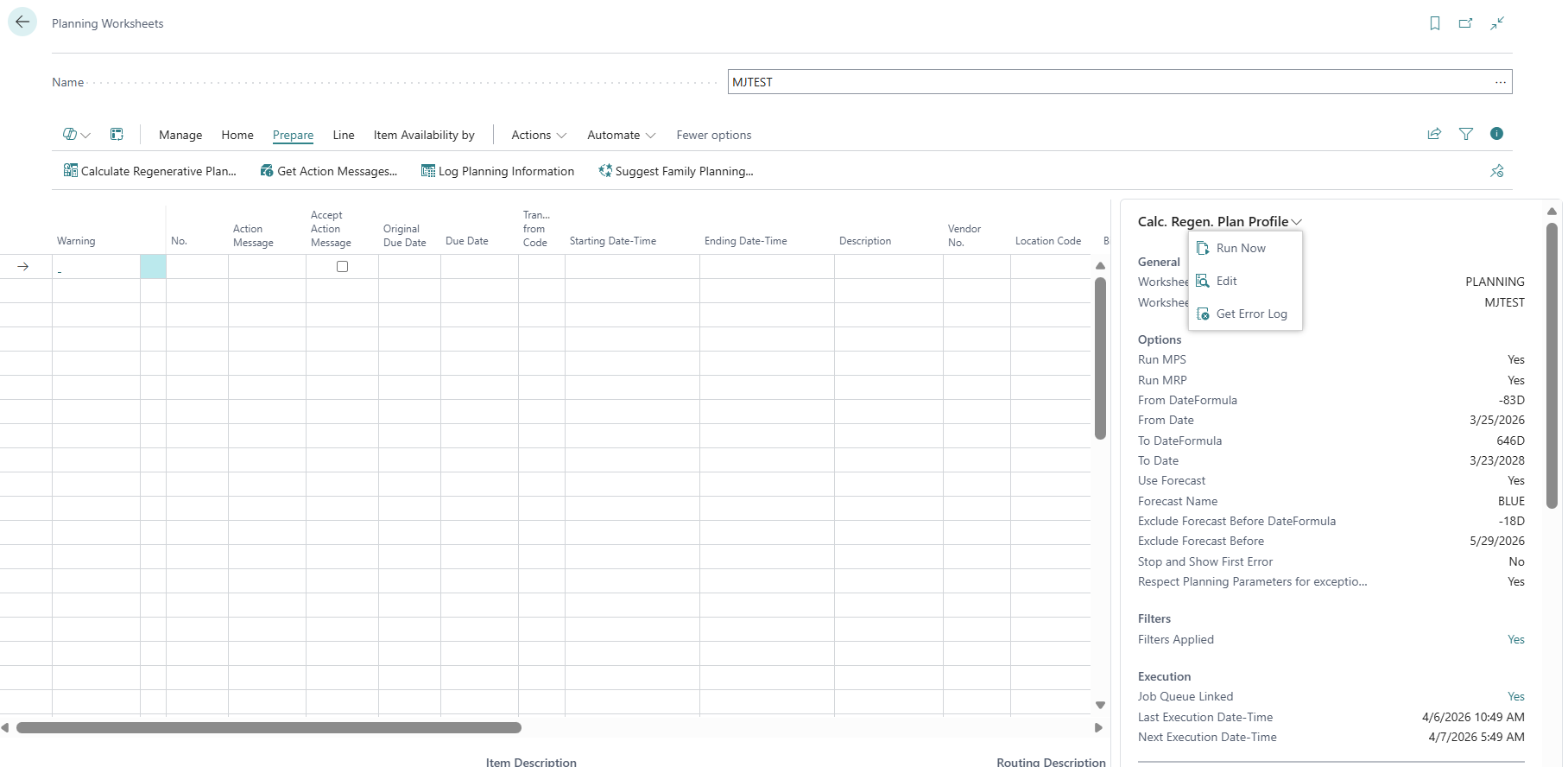
Saved Planning Calc. / Calculation Profile: A saved calculation profile is stored per Worksheet Template + Worksheet Name and tracks planning options (MPS/MRP), forecast options, dynamic date formulas, last run status, and recurrence link. This saved calculation is presented as FactBox on the Planning Worksheet.
Actions (available on profile FactBox and Req. Wksh. Names)
- Run Now: Execute the selected planning calculation profile immediately in the background, using the saved filters and options associated with the profile.
- Edit: Open and edit the report and scheduling information related to the selected planning calculation profile, including filters, options, and recurrence settings.
- Get Error Log: View the planning error log generated during the execution of the regenerative planning calculation. This action behaves the same as the standard Get Error Log action available on the Planning Worksheet, with the following important improvement:
- It allows users to review planning errors even when no planning lines were created on the Planning Worksheet.
- This is especially relevant for automated or background planning runs, where the worksheet may be empty but errors still occurred (for example, blocked items, uncertified BOMs, or invalid planning setup).
Business Rules
- Saving a calculation to the Job Queue: When Save to Job Queue is enabled, the system automatically creates a Job Queue entry using the selected Planning Worksheet, filters, and options. This allows planning to run automatically in the background at the scheduled frequency, without user interaction.
- Handling existing calculation profiles: If a calculation profile already exists for the same Planning Worksheet template and batch, the system asks whether you want to replace it.
- Choosing Yes updates the existing profile with the new settings.
- Choosing No still runs the planning calculation once, but keeps the existing automated profile unchanged.
What happens during a background planning run?
- Each automated run follows the standard regenerative planning behavior:
- Existing planning suggestions for the selected worksheet template and batch are removed.
- The system recalculates planning from scratch using the saved filters and options.
Controlling how errors are handled
The Stop and Show First Error option determines how issues during planning are managed:
- When enabled, the calculation stops as soon as the first error is encountered and the job is marked as failed.
- When disabled, the calculation continues for other items, and all errors can later be reviewed using the Get Error Log action.