Core Processes
Machine Status
The Machine Status feature provides real-time visibility and control over the state of each machine or work center during production. It enables users to track and manage transitions such as Setup, Running, Paused, and Finished for every operation in a released production order. This functionality is essential for monitoring progress, analyzing downtime, and ensuring accurate time tracking across all manufacturing activities.
Setup
To configure Machine Status tracking, follow these steps:
Enable Machine Status Tracking
- In the Production Follow-Up Setup page, set Allow Machine Status to “True” to activate machine status control for production orders.
- When enabled, additional fields and actions related to machine status become available throughout the app.
Fields Added to Prod Order Routing
- Two new fields, Machine Status and Stop Code, are added to the Prod Order Routing table.
- These fields are only visible for released production orders and when machine status tracking is enabled.
Status Options Machine Status is an enumerated field with the following options:
- Setup: Preparing the machine or work center.
- Running: Actively producing.
- Paused: Temporarily stopped (requires a Stop Code).
- Finished: Operation complete.
Stop Codes
- When a machine is paused, a Stop Code must be selected to indicate the reason (e.g., break, maintenance, equipment failure).
- The Stop Code field is only editable when the status is set to Paused.
Actions
- Change Machine Status: Allows users to update the status of one or more routing lines, provided they share the same current status.
- Reopen Machine Status: Lets users revert a Finished status back to Running for corrections.
Business Rules
Visibility and Editability
- Machine Status and Stop Code fields are only visible for released production orders and when machine status tracking is enabled.
- Stop Code is mandatory when changing status to Paused.
Status Change Validations
- Change Machine Status can be applied to multiple lines only if all selected lines have the same current status.
- If lines with different statuses are selected, the system will display an error.
- When changing status, the Posting Date defaults to the work date, and Posting Time defaults to the time of action.
Restrictions
- Reopen Machine Status is only available if the current status is Finished.
- If the status is not Finished, the action is disabled.
- For routing lines with Backwards or Forward Flushing Method, machine status control is not allowed; attempting to change status will result in an error.
Output Control
- If Allow Machine Status Control on Output is enabled (on Production Follow-Up Setup), output posting is only allowed when the machine status is Running.
- The validation is valid on the Production Journal, Output Journal and Inventory Put-away (with Source Document = Prod. Output).
Audit and Analytics
- All status transitions are logged for audit and analytics purposes.
- Machine status changes do not impact production order costing unless configured to post as capacity ledger entries.
Machine Status Progress
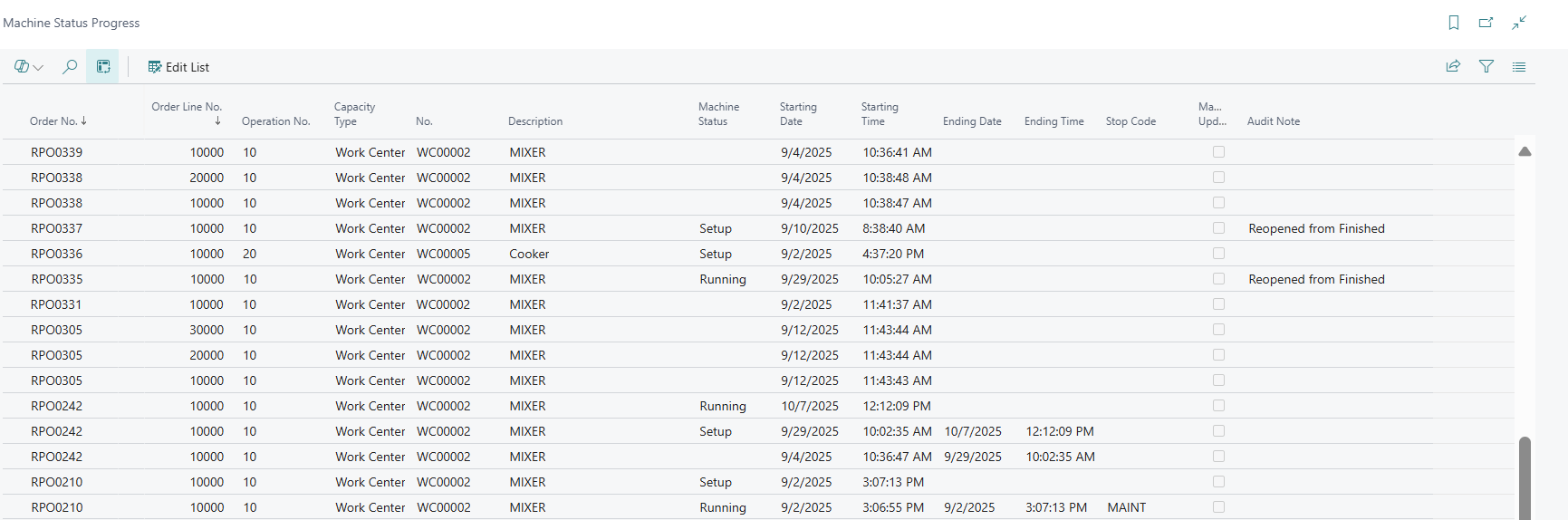
The Machine Status Progress feature provides a detailed, real-time view of the progress and transitions for each machine or work center operation within a production order. It enables users to monitor how each operation moves through its lifecycle—Setup, Running, Paused, and Finished—while capturing key timestamps, stop reasons, and audit notes. This supports operational transparency, performance analysis, and process improvement.
Setup
Machine Status Progress is available for released production orders when “Allow Machine Status” is enabled in Production Follow-Up Setup.
The Machine Status Progress page can be accessed from:
- Prod Order Routing Line (only for released production orders);
- Production Follow-Up dashboard;
- Production Order Line (only for released production orders);
- Search bar
Business Rules
Entry Creation and Edit Permissions
- Machine Status Progress lines are created automatically when a machine status is set (other than Empty) for a routing line.
- Manual updates to Machine Status Progress lines are only allowed for users with the Admin Permission set. When a line is manually updated, the “Manually Updated” flag is automatically activated and inherited to related Time Entries.
Status Selection and Validations
- Machine Status = Finished cannot be manually selected when creating or updating a Machine Status Progress line; the system will block this action and display an error.
- Only existing lines can be updated manually; new lines cannot be added manually.
Automatic Posting and Movement
- When a machine status is changed to Finished or a production order is completed, Machine Status Progress lines are moved to the Time Journal and posted automatically.
Integration with Time Entries
- When Machine Status Progress lines are moved to the Time Journal, all relevant fields and audit notes are transferred.
- The “Manually Updated” flag is inherited by Time Entries for traceability.
Time Entries
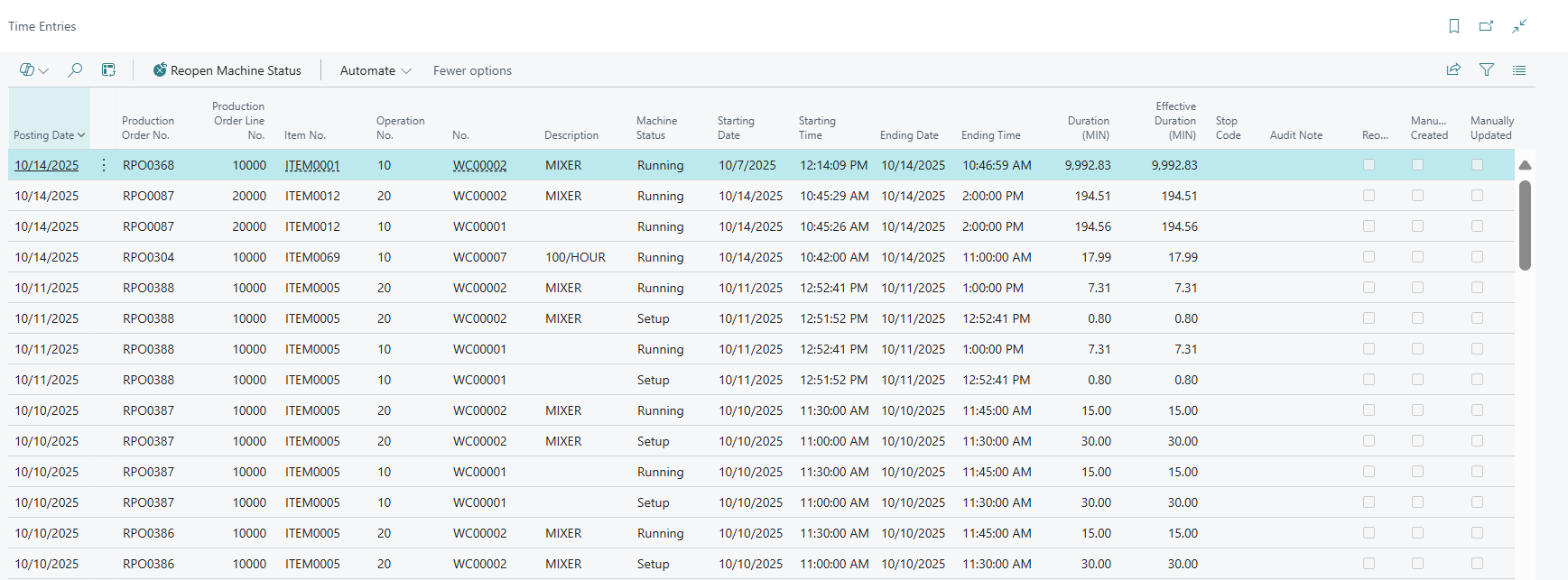
Time Entries are automatic records that capture the start and end times, durations, and status changes for each operation or machine during production. They provide a precise log of actual production activity, including machine status transitions (Start, Running, Paused, Finished), stop reasons, and audit notes.
Time Entries are typically generated automatically by the system as machine status change to finished. However, it is possible to manually add a Time Entry through the Time Journal, but only for users with the Admin Permission set.
Setup
To configure and use Time Entries:
Enable Time Entries Functionality
- Ensure “Allow Machine Status” is enabled in the Production Follow-Up Setup. This activates automatic time tracking for machine status changes.
Time Entries Table and Page
- The Time Entries page displays all lines related to changes in Machine Status for each production order and operation.
- All fields in Time Entries are non-editable for all users, ensuring data integrity.
- Manual Time Entries can only be added via the Time Journal, and only by users with the Admin Permission set. These entries will be flagged as “Manually Created.”
- Posted on Capacity Ledger Entries: This field indicates whether the Time Entry has been posted as a Capacity Ledger Entry. This can be activated/deactivated through the field Post Time Entries as Capacity Ledger Entries from Production Follow-Up Setup.
Automatic Entry Creation
- When a machine status changes or a production order is finished, the system automatically generates Time Entries for all relevant operations.
- Manual entry is reserved for exceptional cases and must be performed through the Time Journal by authorized users.
Business Rules
When a machine or production order is set to Finished, all relevant Time Entries are posted automatically. The following validations exist on the Time Entries process:
- Duration and Effective Duration are always calculated in minutes.
- If a user tries to select Machine Status = Finished when manually creating a Time Journal Line, the system blocks the action and shows an error.
- If Time Entries Journal Template or Batch is empty and machine status tracking is enabled, the system blocks refreshing the production order and displays an error.
- If a Time Entry is reopened (via Reopen Machine Status), the entry is flagged as “Reopened” and a new Time Journal line is created with status = Running and an audit note (“Reopened from Finished”).
- If “Post Time Entries as Capacity Ledger Entries” is enabled, Time Entries are posted as capacity ledger entries when the production order is finished.
- If there are open Time Entries and the user tries to disable machine status tracking, the system blocks the change.