Setup & Configuration
Assisted Setup Wizard
An Assisted Setup wizard is available to guide first-time configuration. Search for “Assisted Setup” in Dynamics 365 Business Central and locate the Manufacturing Essentials entry. The wizard walks through the essential settings for each feature module.
Manufacturing Essentials Setup
The Manufacturing Essentials Setup page is the central configuration hub. Access it via the Manufacturing Essentials Setup menu. The setup is organized into tabs corresponding to each feature module.
Manufacturing Variances
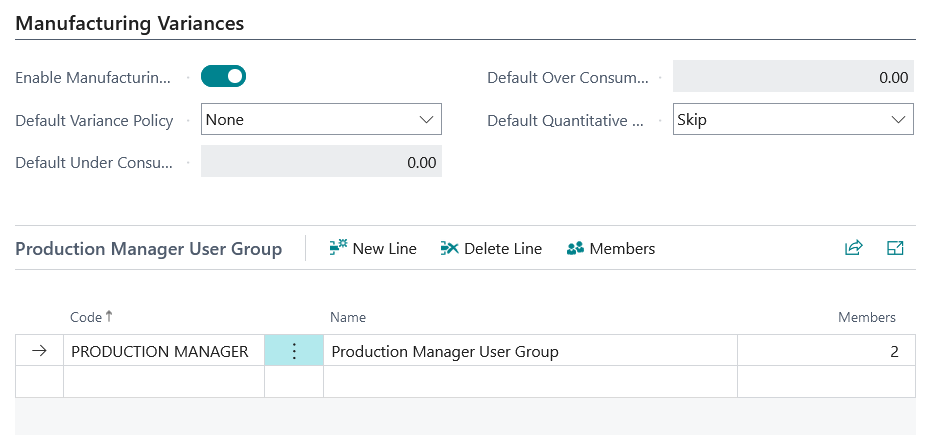
To start using Manufacturing Variances Management, navigate to Manufacturing Essentials Setup. Under the Manufacturing Variances tab, activate the feature by enabling the field Enable Manufacturing Variances.
| Field Name | Description |
|---|---|
| Enable Manufacturing Variances | Activates the variance management feature across the system. |
| Default Variance Policy | Choose between None, Warning, or Block. None: No variance check is done (however, the variance is recorded). Warning: The system will show a warning to alert the user when setting values outside the specified tolerances on quantities. Block: This option does not allow the user to consume or produce above or below the specified tolerances. |
| Default Under Consumption Tolerance (%) | Specify the allowed percentage deviation for under-consumption. |
| Default Over Consumption Tolerance (%) | Specify the allowed percentage deviation for over-consumption. |
| Default Quantitative Review | Determine whether a review is Mandatory or can be skipped (Skip). |
User Groups Only users assigned to the Production Manager User Group can approve certain production order statuses (e.g., “In Review”). This user group is automatically created during installation and cannot be deleted.
Manufacturing Backflushing
Under the Manufacturing Backflushing tab, enable the Backflushing Automatic Tracking toggle to activate the backflushing feature. When Backflushing Automatic Tracking is enabled, all Released Production Orders will inherit this setting.
| Field Name | Description |
|---|---|
| Backflushing Automatic Tracking | If a Routing Link Code is present, the system will automatically assign Item Tracking Lines and post the corresponding consumption during production output registration (e.g., via Output Journal, Subcontracting Purchase Order, Inventory Put-away, or Production Journal). |
Multiple Order Consuption
To configure Multiple Order Consumption feature, navigate to the Manufacturing Essentials Setup page via the Bricklead Manufacturing Essentials menu.
| Field Name | Description |
|---|---|
| Default Process Item Hierarchy | Select one of two options to define the process item inheritance: Stockkeeping Unit: The Process Item and Consumption Distribution Rule fields populated on the production order component line will be defaulted with the values defined on the Item/Stockkeeping Unit card. Production BOM: The Process Item and Consumption Distribution Rule fields populated on the production order component line will be defaulted with the values defined on the Production BOM Line |
Co/By-Products
To configure Co/By-Products, navigate to the Manufacturing Essentials Setup page via the Bricklead Manufacturing Essentials menu.
| Field Name | Description |
|---|---|
| Capacity Cost Allocation | Select one of two methods for allocating capacity costs to co/by-products: Quantity Proportional: Capacity costs are distributed proportionally across all products (main item and Co/By-Products) based on the recorded output quantities. None: All capacity costs are allocated solely to the main product, and Co/By-Products are not assigned any portion of these costs |